

The estimated reading time 3 minutes
Yesterday, the Exchange team announced another change (which I think makes sense). Starting in March 2026, ActiveSync clients—that is, various mobile devices (phones/tablets, other ActiveSync devices)—that run an EAS client older than version 16.1 will no longer be supported. In other words, all older smartphones or tablets that access Exchange Online using their built-in email client will no longer work.

To find out if such clients are in use, the Exchange team provides a PowerShell command.
Get-MobileDevice -ResultSize Unlimited | Where-Object {($_.ClientType -eq 'EAS' -or $_.ClientType -match 'ActiveSync') -and $_.ClientVersion -and ([version]$_.ClientVersion -lt [version]'16.1')} | Sort-Object UserDisplayName | Select-Object UserDisplayName, Identity, DeviceId, DeviceModel | Format-List
Of course, this can only be executed in Exchange Online PowerShell.
Using the command mentioned above, you get a hopefully small (sometimes larger) list within PowerShell.
In my case, a device was displayed, but it was already isolated and in quarantine.

In larger environments, a small Excel/CSV list would certainly be helpful, so I have modified the command here slightly to output it as a CSV export.
$orgname = (Get-Organizationconfig).name
$date= (Get-date -Format yyyy-mm-dd-hh-MM)
$exportpath = "$env:USERPROFILE\Downloads\$date-$orgname-eas-devices.csv"
Get-MobileDevice -ResultSize Unlimited | Where-Object {($_.ClientType -eq 'EAS' -or $_.ClientType -match 'ActiveSync') -and $_.ClientVersion -and ([version]$_.ClientVersion -lt [version]'16.1')} | Sort-Object UserDisplayName | Select-Object Identity, DeviceId,DeviceOS,DeviceModel,DeviceImei,ClientVersion,FirstSyncTime,DeviceAccessState | Export-Csv -Path $ExportPath -Encoding UTF8 -Delimiter ";" -NoTypeInformation
NOTE: The output file will be saved in the current user’s download folder!
The result should then look something like this.

Hopefully this helps in identifying old devices within the Exchange Online environment.
Removing old devices:
To delete the device for the user, the Exchange Online GUI can be used. This can be done using the Exchange Administrator role or the global administrator role.
https://admin.exchange.microsoft.com
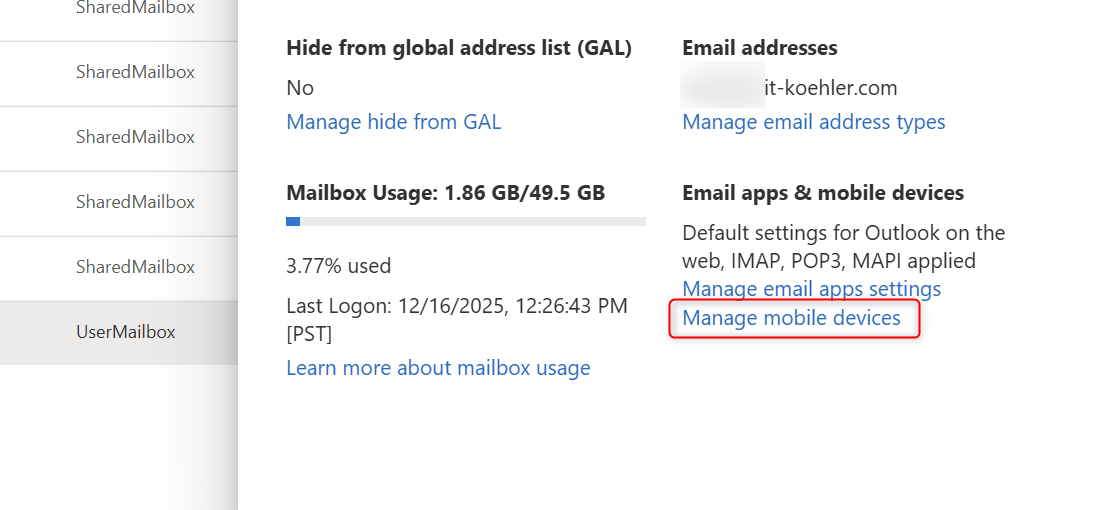
To remove the device, it must first be blocked.
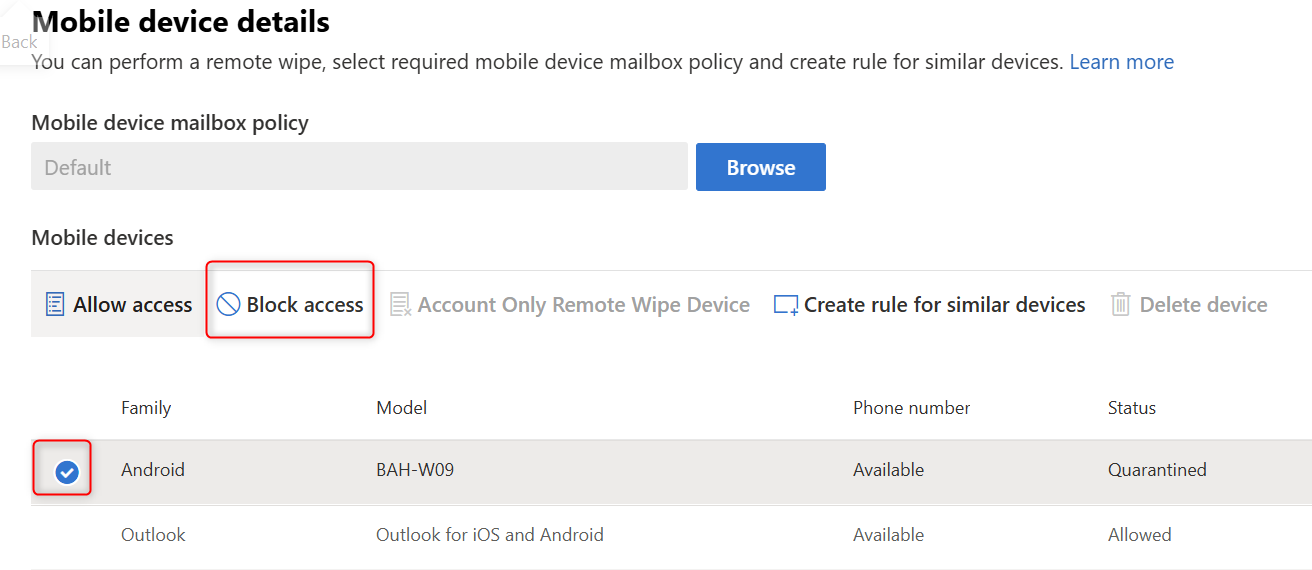
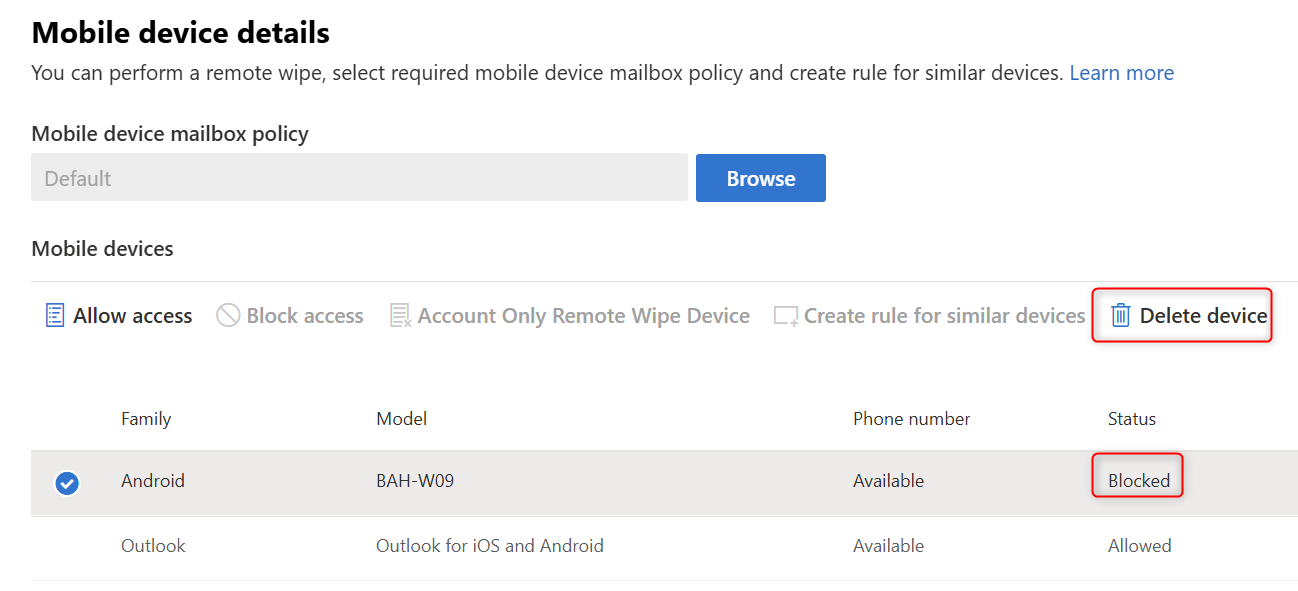
In my case, this is quickly done, but in larger environments it can degenerate into a somewhat longer “clicking torture”, so PowerShell can also help here.
$devices = Get-MobileDevice -ResultSize Unlimited | Where-Object {($_.ClientType -eq 'EAS' -or $_.ClientType -match 'ActiveSync') -and $_.ClientVersion -and ([version]$_.ClientVersion -lt [version]'16.1')} | Sort-Object UserDisplayName | Select-Object Identity, DeviceId,DeviceOS,DeviceModel,DeviceImei,ClientVersion,FirstSyncTime,DeviceAccessState
foreach($device in $devices){
$ident = ($device).Identity
$imei = ($device).DeviceImei
$os = ($device).DeviceOS
$model = ($device).DeviceModel
Write-Host "Removing: $ident,$os,$model,$imei" -ForegroundColor Yellow
Remove-MobileDevice -Identity $ident -WhatIf
}
The output within PowerShell is as follows (test run):

To actively delete the EAS clients, the “-WhatIf” must be removed from the second-to-last line, and the script will then be “active”.
For questions and suggestions, please use the comment function. Otherwise, I would appreciate it if you used the “Helpful” button.